How to Connect Obsidian (Official URI Protocol Guide)
SocialExport uses the same official obsidian://new URI + clipboard workflow as the official Obsidian Web Clipper: zero community plugins, zero API keys, zero OAuth, and zero backend servers.
Updated: 2026-11-26
How the Zero-Plugin Workflow Works
Obsidian desktop natively handles the `obsidian://new` URI scheme. When you export, SocialExport copies clean Markdown (with YAML front matter and Obsidian fold callouts) to your system clipboard and invokes `obsidian://new?file=...&clipboard=true`:
- No OAuth and no API keys required.
- No community plugins (such as Local REST API) and no localhost port/TLS headaches.
- No backend server — works 100% locally with no URL length truncation.
- Supports custom folders, new note creation, append (`append=true`), overwrite (`overwrite=true`), and silent mode (`silent=true`).
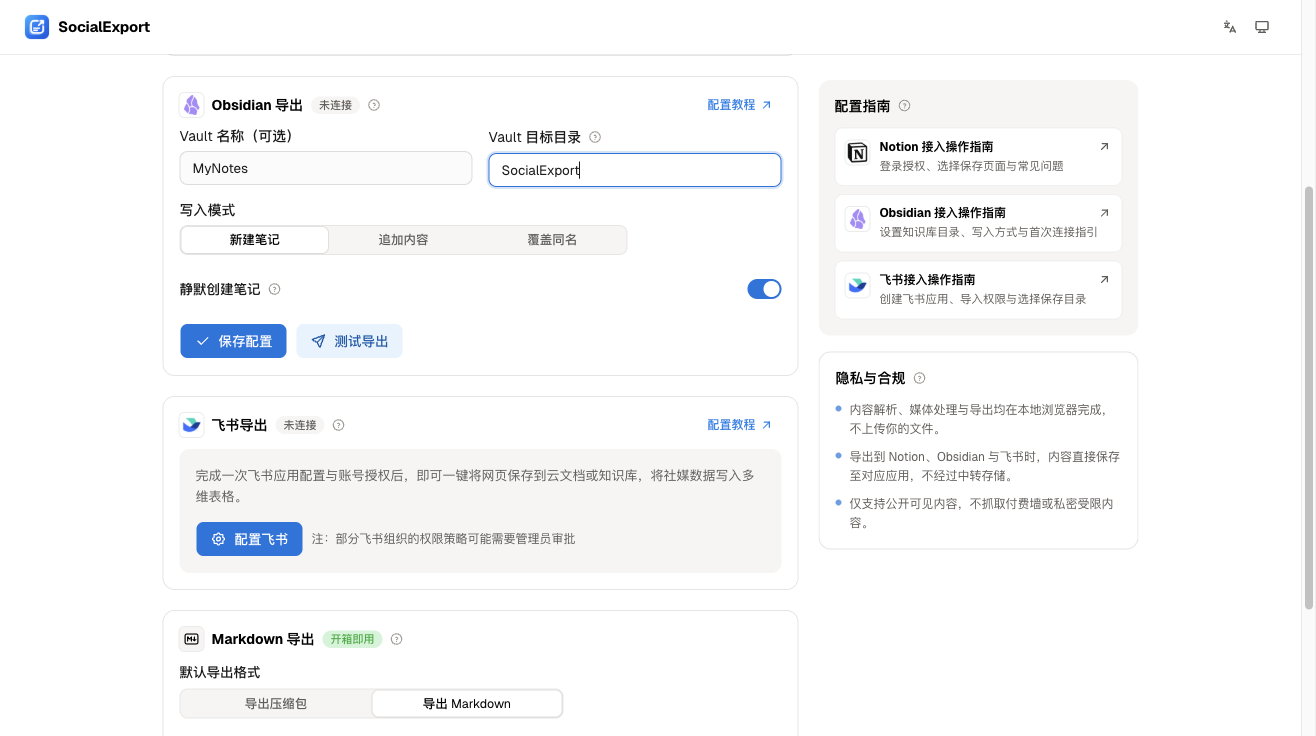
Step 1: Click Connect Obsidian
Make sure the Obsidian desktop app is installed. Open SocialExport Preferences and click Connect Obsidian under the second section (Obsidian Export).
Step 2: Set Vault Name & Default Folder
Enter your optional vault name and default folder:
- Vault name (optional): Matches the vault name shown at the bottom-left of Obsidian. Leave blank to write to whichever vault is currently active.
- Default folder: e.g., `SocialExport` or `Inbox/WebClips`. Obsidian creates missing subfolders automatically.
Step 3: Choose Write Mode & Silent Capture
Customize how notes are created:
Note on silent mode
Passing silent=true avoids focusing the note in Obsidian, though OS-level URI handlers on macOS or Windows may still briefly surface the app window.
- New note (default): Creates a fresh `.md` note every time.
- Append (`append=true`): Appends clipped Markdown to the bottom of a matching existing note.
- Overwrite (`overwrite=true`): Replaces an existing note of the same name.
- Silent (`silent=true`): Requests background note creation without focusing Obsidian.
Step 4: Click Test Export
Click Test export. The first time your browser opens an `obsidian://` link, check Always allow and confirm Open Obsidian. You will see `SocialExport 连接测试.md` inside your configured folder.
obsidian://new?vault=MyNotes&file=SocialExport%2FSocialExport+Test&silent=true&clipboard=true
Troubleshooting
Quick fixes if Test export does not create a note:
| Symptom | Likely Cause | Fix |
|---|---|---|
| Nothing happens on click | Obsidian desktop is not installed or protocol handler was blocked | Install/launch Obsidian once, and re-allow obsidian:// links in your browser permissions. |
| Vault not found error | Vault name spelling/case mismatch | Clear the Vault name field to target your currently open vault automatically. |
| Note created with empty body | Clipboard write was blocked or overwritten | Trigger exports via direct click and ensure clipboard managers do not clear immediately. |
Frequently Asked Questions
Do I need the Obsidian Local REST API plugin?
No. SocialExport uses Obsidian's built-in obsidian://new URI protocol plus clipboard transfer with zero community plugins.
Why pass Markdown through the clipboard instead of the URL?
Operating systems truncate long custom-protocol URLs. Passing clipboard=true reliably transfers long articles, code blocks, and LaTeX equations without truncation.

