How to Connect Notion (One-Click OAuth Guide)
SocialExport uses official Notion Public Integration OAuth so you never have to create a developer integration or paste secret keys. Sign in, choose which pages to share, pick your default destination, and export with one click.
Updated: 2026-11-26
Why Official Notion OAuth?
Instead of creating an internal developer integration, copying secret keys, and manually attaching Connections page by page, official OAuth completes setup in under 30 seconds:
- Zero developer setup: No manual integration creation or API key copy-pasting.
- Page-scoped access: Grant access only to the specific Notion pages or databases you pick.
- Automatic token refresh: SocialExport refreshes OAuth tokens transparently when needed.
- No content relay: Our lightweight OAuth service only handles token exchange and refresh. Clipped pages and social records go directly from your browser to https://api.notion.com/v1.
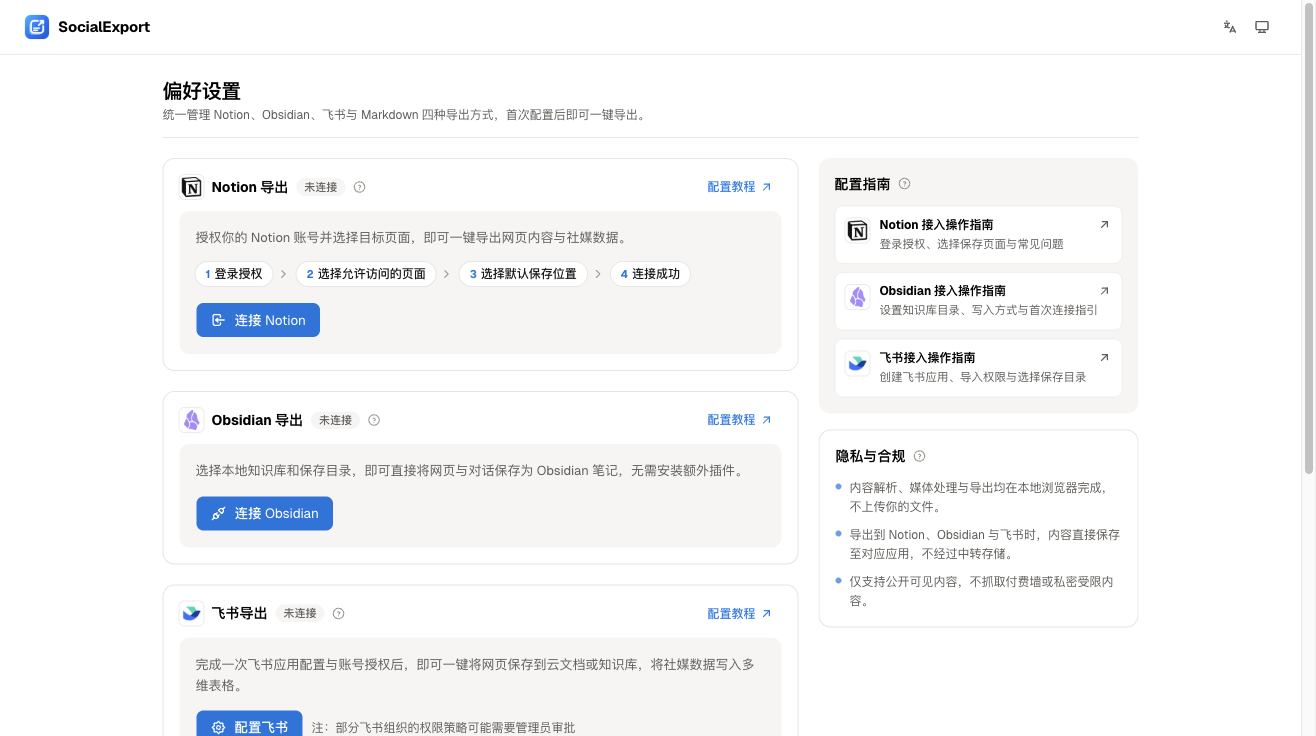
Step 1: Click Connect Notion
Open the SocialExport extension popup, click Settings, and locate the Notion Export card at the top. Click Connect Notion.
Step 2: Authorize Workspace & Select Pages
In Notion's official consent window, pick your target workspace, click Select pages, check the parent page or database you want to use, and click Allow access.
Tip: Create a dedicated parent page
Create a page such as SocialExport Inbox and share it during OAuth. Web clips become clean child pages inside it, while social data exports automatically create per-platform databases deduplicated by ID.
Step 3: Choose Your Default Save Location
Once authorized, SocialExport fetches your accessible pages and databases directly from Notion's Search API. Search and click the destination you want as your default save location.
- Parent Page: Web clips and AI chats become structured child pages; social data creates per-platform databases.
- Database: Web clips are inserted as new rows (automatically mapping Title, URL, Author, and Date properties).
Step 4: Test Connection & Export
Click Test connection to verify your workspace and target page. You can now export any readable page or social dataset to Notion in one click.
Troubleshooting
Common issues and quick fixes when connecting Notion:
| Symptom | Likely Cause | Fix |
|---|---|---|
| Empty destination list | No pages were checked in Notion's consent dialog | Click Re-select pages in Settings and check at least one parent page or database. |
| 404 Not Found on export | The target page was archived or disconnected | Click Re-select pages or re-enable SocialExport under ••• → Connections in Notion. |
| 401 Unauthorized | Authorization was revoked in Notion settings | Click Connect Notion or Re-select pages to re-authorize. |
Frequently Asked Questions
Does clipped web content pass through SocialExport's servers?
No. Our lightweight OAuth worker only exchanges and refreshes OAuth tokens. All page blocks and social rows are sent directly from your browser to api.notion.com.
How do I authorize additional Notion pages later?
Click Re-select pages in Preferences, check the additional pages in Notion's consent dialog, and refresh the list.

