How to Connect Feishu (Self-Built App + OAuth Guide)
SocialExport connects directly to the Feishu Open Platform using your own self-built app + user OAuth — with automatic token exchange, diagnostics, automatic refresh, one-click permission JSON copy, and a visual Drive/Wiki directory picker.
Updated: 2026-11-26
Step 1: Create a Feishu Self-Built App
Sign in to the Feishu Open Platform console and create a new Enterprise Self-Built App (for example, `SocialExport Clipper`).
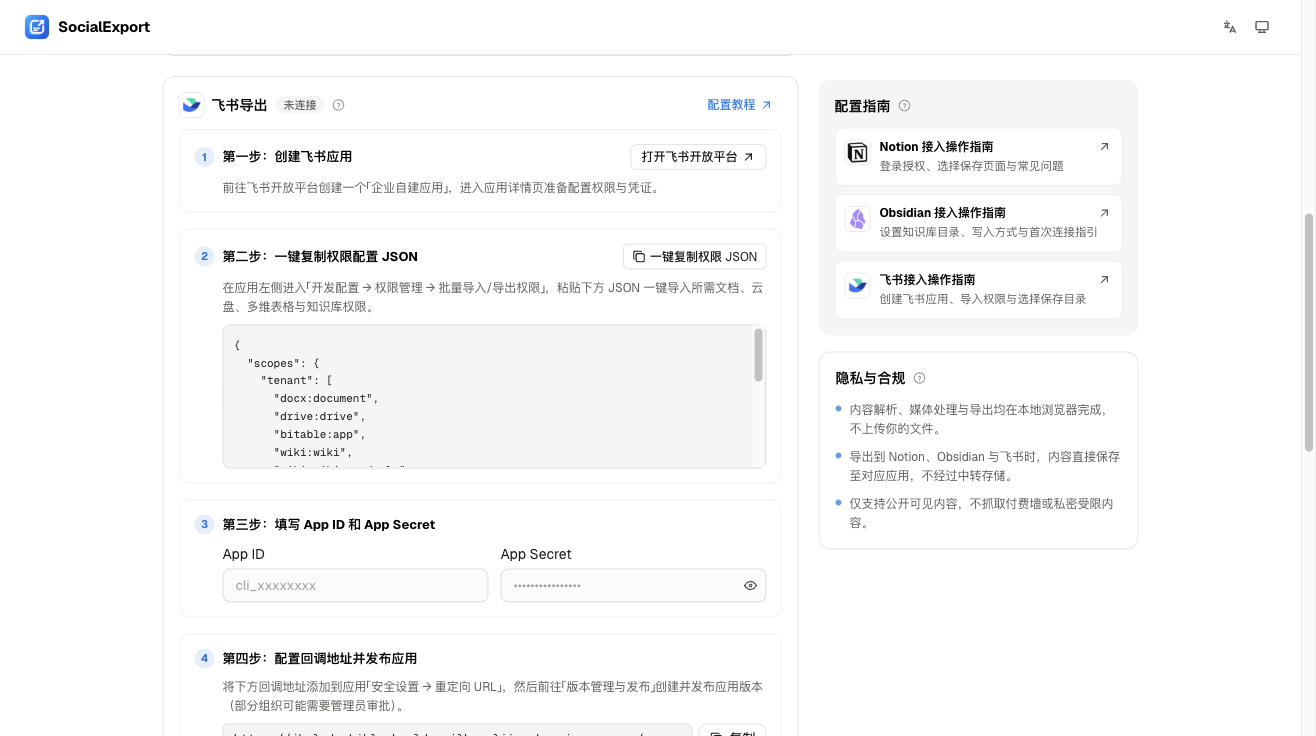
Step 2: Copy & Batch-Import Permissions JSON
Go to Development Configuration → Permissions → Batch Import/Export, switch to Import, paste the JSON below, and confirm the requested scopes:
- `docx:document`: Create and populate Feishu Docs with formatted headings, lists, code blocks, and images.
- `drive:drive`: Browse Drive folders and upload inline images or cover attachments.
- `bitable:app`: Create and deduplicate social data tables in Feishu Base.
- `wiki:wiki` / `wiki:wiki:readonly`: Browse Wiki spaces/nodes and create doc nodes inside a chosen Wiki space.
{
  "scopes": {
    "tenant": [
      "docx:document",
      "drive:drive",
      "bitable:app",
      "wiki:wiki",
      "wiki:wiki:readonly"
    ],
    "user": [
      "docx:document",
      "drive:drive",
      "bitable:app",
      "wiki:wiki",
      "wiki:wiki:readonly"
    ]
  }
}
Step 3: Fill App ID & App Secret
Open Credentials & Basic Info, copy your `App ID` (`cli_...`) and `App Secret`, and paste them into Step 3 of the Feishu Export card in SocialExport Preferences.
Step 4: Set OAuth Redirect URL & Publish Version
Copy the extension's OAuth Redirect URL shown in Step 4 of Preferences:
Note on Organization Admin Approval
New permissions only activate after publishing an app version. Some Feishu organizations require a workspace administrator to approve app releases; browser extensions cannot bypass organization approval policies.
- Paste it under Development Configuration → Security Settings → Redirect URLs and save.
- Open App Release → Version Management & Release, create a version (e.g., `1.0.0`), and publish it so the new permissions take effect.
Step 5: Authorize Feishu & Run Diagnostics
Click Authorize as Feishu user in Settings to complete OAuth login. SocialExport exchanges the authorization code directly with open.feishu.cn and automatically refreshes tokens when needed.
Click Check credentials & scopes to validate credentials, user OAuth, Drive access, and Wiki access with actionable fix instructions if anything is missing.
Step 6: Pick Your Default Drive Folder or Wiki Space
Use the built-in visual directory picker to select where documents and Base tables are saved:
- Drive folder: Click Browse Drive folders to drill down from My Space and select any folder or existing Base.
- Wiki space: Switch to Wiki space, click Browse Wiki spaces, and select a space or parent node to clip articles straight into your Wiki.
Common Feishu Error Codes & Fixes
Use the reference table below if diagnostics report an error code:
| Error Code | Cause | How to Fix |
|---|---|---|
| 10003 / 10014 | Invalid App ID or App Secret | Re-copy App ID (cli_...) and App Secret from Credentials & Basic Info without trailing spaces. |
| 20003 / 20029 | OAuth Redirect URL mismatch | Copy the Redirect URL from Settings and add it under Security Settings → Redirect URLs. |
| 99991672 / 99991679 | Missing API scopes or unpublished version | Batch-import the Step 2 JSON and publish a new app version (ensure admin approval is complete). |
| 99991663 / 99991668 | Expired or revoked access token | Click Re-authorize Feishu in Settings. |
| 1770032 / 91403 / 1254302 | No edit permission on target folder, Wiki, or Base | Complete user OAuth authorization, or add the app as a collaborator on the target folder/Wiki/Base. |
Frequently Asked Questions
Are my Feishu App Secret or OAuth tokens sent to SocialExport servers?
Never. Your credentials stay strictly in local browser extension storage and all API calls go directly to open.feishu.cn.
Why do I still see code 99991672 after importing permissions?
You must create and publish an app version under Version Management & Release (and wait for admin approval if your org requires it) before newly imported scopes activate.

